

What is a COD form, and how is it different from Shopify’s COD option?
There are two ways to take cash on delivery orders on Shopify.
Shopify’s built-in option turns cash on delivery into a payment method. You activate it under Settings > Payments as a manual payment method, and buyers choose it at the end of the normal checkout. These orders show as payment pending until you mark them as paid (Shopify Help Center).
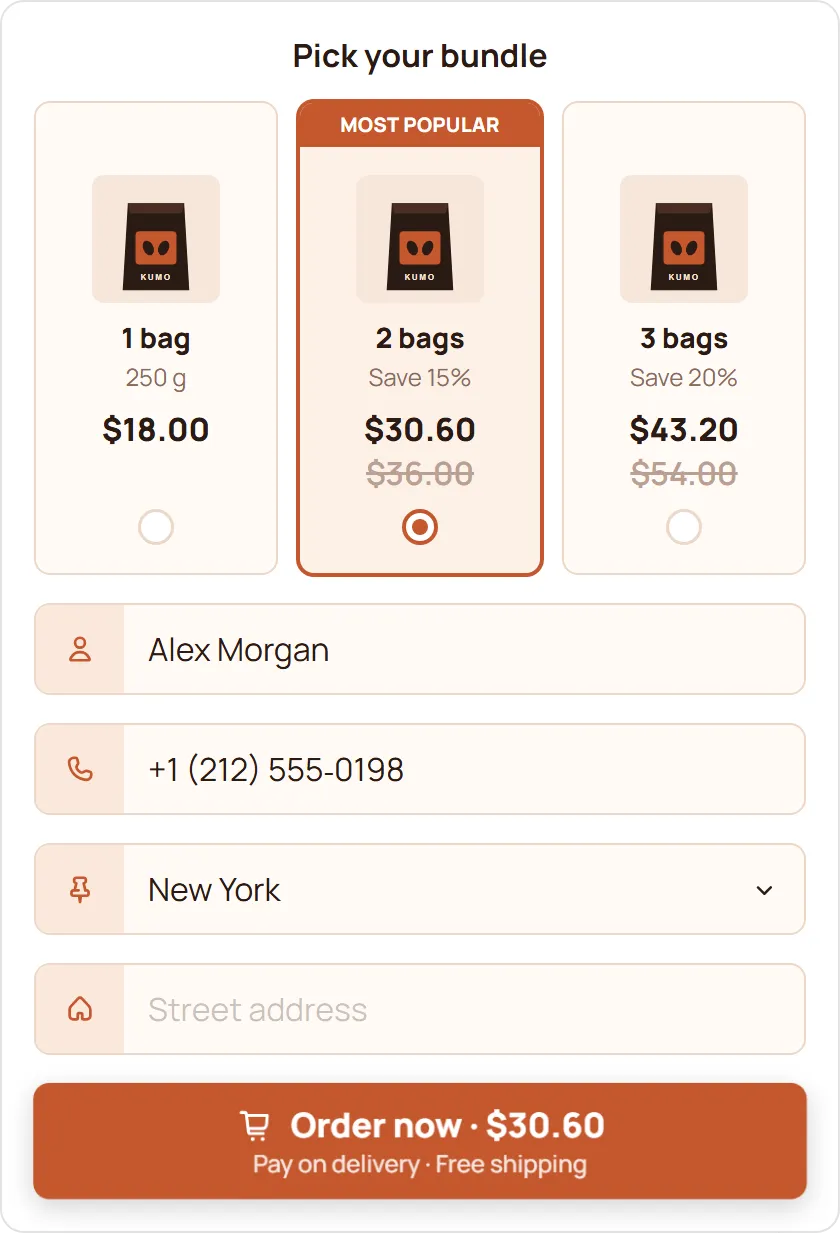
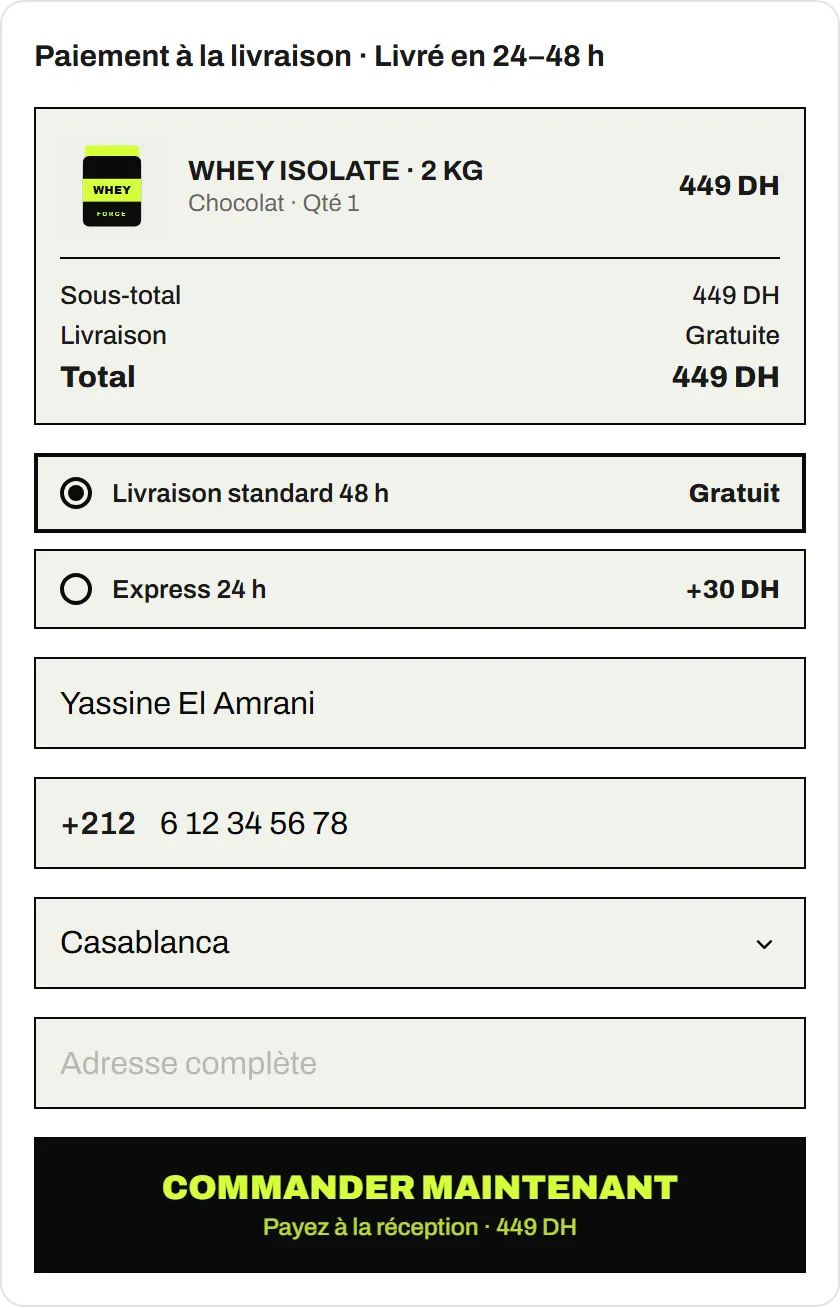
A COD form replaces the checkout for COD buyers. A short form opens on the product page, the buyer types a name, phone number and address, and the order is created in your admin.
| Shopify’s COD payment method | A COD form app | |
|---|---|---|
| Where the buyer orders | Shopify checkout | A form on the product page |
| What the buyer fills in | The checkout’s fields | The fields you choose |
| How you set it up | Settings > Payments | Install an app, switch on its app embed |
You can use both at once: keep COD in the checkout for buyers who go through the cart, and add the form on product pages.
What do you need before you start?
- A Shopify store with at least one product.
- Your delivery prices for each wilaya, region or country you ship to.
- Optional: a Google account for Google Sheets, and your Meta, TikTok or Snap pixel IDs.
How do you add a COD form to Shopify, step by step?
1. Install EverCore from the Shopify App Store
Install EverCore on your store. The Free plan, which includes the COD Form, is active as soon as you install. There is no trial to start and nothing to approve in Shopify billing. The EverCore dashboard also has a setup guide you can follow alongside this article.
2. Switch on the EverCore COD app embed
In your Shopify admin, go to Online Store, click Edit theme, then open App embeds in the sidebar. Turn on EverCore COD and click Save (Shopify Help Center).
3. Choose popup or embedded
A popup opens when the buyer taps the buy button. An embedded form sits on the product page itself. Either can be one step, or two steps with an order confirmation screen.
You can also add the form to the cart page and the cart drawer, and hide your theme’s Add to cart and Buy it now buttons where the form shows, so buyers see one clear way to order.
4. Pick your fields and style
Choose which fields to ask for, then style the form to match your store: colours, fonts (including Cairo for Arabic), buttons, icons and animations. The preview updates as you go.
Keep the form short. Name, phone, wilaya or city, and address are enough to deliver a COD order, and every extra field is one more thing to fill in on a phone.
5. Set delivery prices by wilaya or country
In the Shipping rates tab, set a price per wilaya (province), per country, or one price everywhere. You can limit a rate to certain products, order weights or order values. For Algeria, the wilaya and city dropdowns come preloaded.
Algeria went from 58 to 69 wilayas in November 2025, and the 11 new wilayas take over their own services on 1 January 2027 (Algérie360). Check that the wilayas in your price list match the ones your courier uses.
6. Add quantity offers and upsells (optional)
In the Offers tab, add quantity offers such as “buy 2, buy 3” with a percentage off, a fixed amount off or a fixed total price. Upsells sit above the order button, and the buyer ticks them to add another product or an extra such as fast shipping.
7. Connect Google Sheets and your ad pixels
In Integrations & Pixels, connect a Google Sheet so every order is added to it. Abandoned orders, where a buyer typed a valid phone number but didn’t order, go to a separate sheet after a delay you choose, so your team can follow up. Check what consent your local rules require before you call or message those buyers.
Then add your pixels: Meta Pixel and Conversions API, TikTok Pixel and Events API, Snap Pixel and Conversions API, or the Google tag, so COD orders count as conversions in your ad accounts.
8. Turn on spam protection and place a test order
In Spam protection, set a limit on orders per buyer in a time window, a maximum order quantity, and block lists for phone numbers, emails or IP addresses you’ve had fake orders from.
Add your own phone or computer as a Test device, so the limits don’t block you. Then open a product page, place an order through the form, and check that it appears under Orders in Shopify and in your Google Sheet.
How do you know the form is working?
- The test order appears under Orders in your Shopify admin.
- If you connected Google Sheets, it is also a new row in your sheet.
- COD Analytics shows form opens, orders and your conversion rate once real buyers start ordering.
If the form doesn’t appear on the product page, go back to the theme editor and check that the EverCore COD app embed is on and saved in your live theme, and that the product is included in the form’s Visibility settings.
What should you set up next?
Once the form is live, the work moves to order quality and order value: keep fake orders down with spam protection, follow up on the abandoned orders in your sheet, and test a quantity offer on your best-selling product. The free COD form page lists everything the form can do on the Free plan.