



How do you turn on Shopify’s built-in cash on delivery?
On desktop (Shopify Help Center):
- In your Shopify admin, go to Settings > Payments.
- In Payment providers, select a manual payment method.
- Under Additional details, add anything you want buyers to see next to the method at checkout, such as “Pay in cash when your order arrives.”
- Under Payment instructions, explain how payment works. Check the exact process with your delivery company first.
- Activate the method.
On the Shopify mobile app, the same settings are under Menu > Settings > Payments.
Two things to know:
- Orders show as payment pending until you mark them as paid on the order page, after the courier hands you the money.
- Currency: Shopify notes that accepting manual payments in multiple currencies requires Shopify Payments. Where Shopify Payments isn’t available, as in Algeria, price your store in the currency your buyers pay in.
What does the buyer go through with native COD?
The full Shopify checkout: contact details, delivery address, delivery method, then payment, where they choose cash on delivery. It’s the same checkout as card buyers, just with a different payment option at the end.
What does a COD form change?
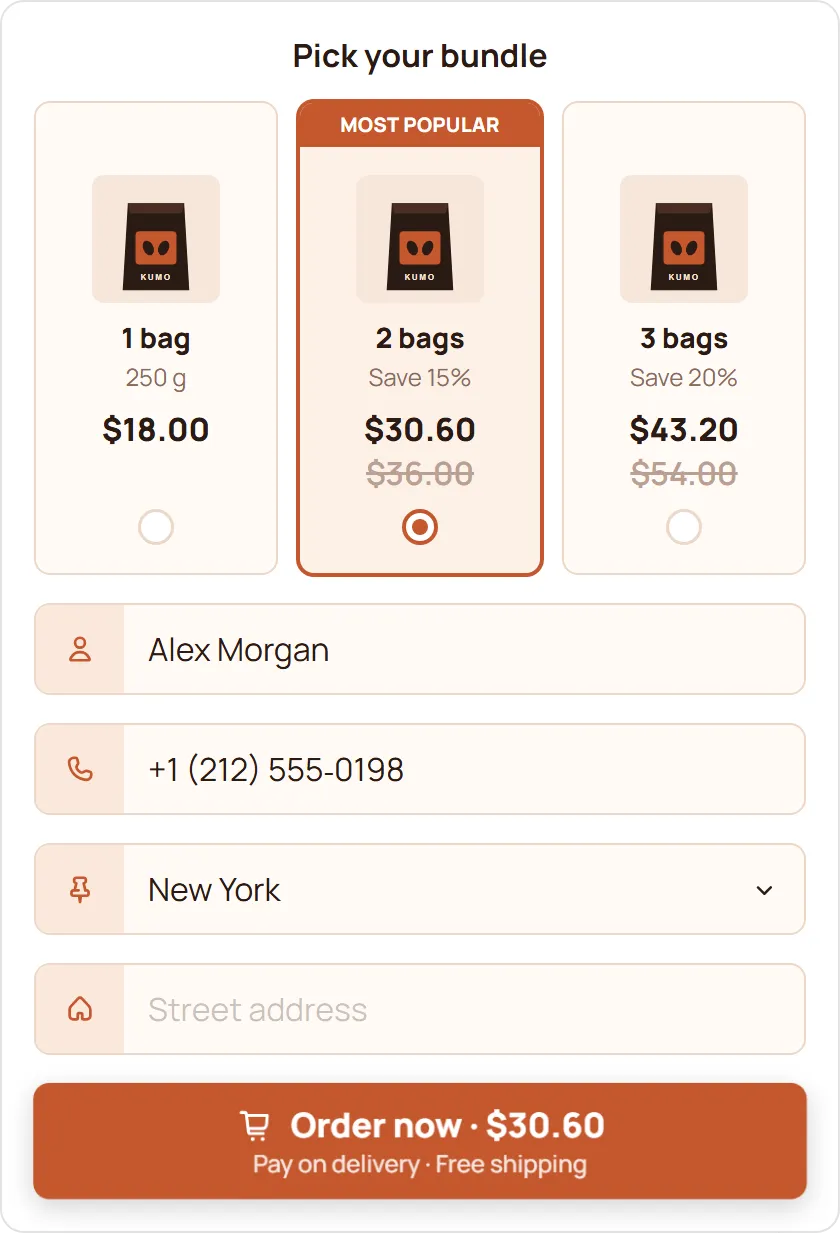
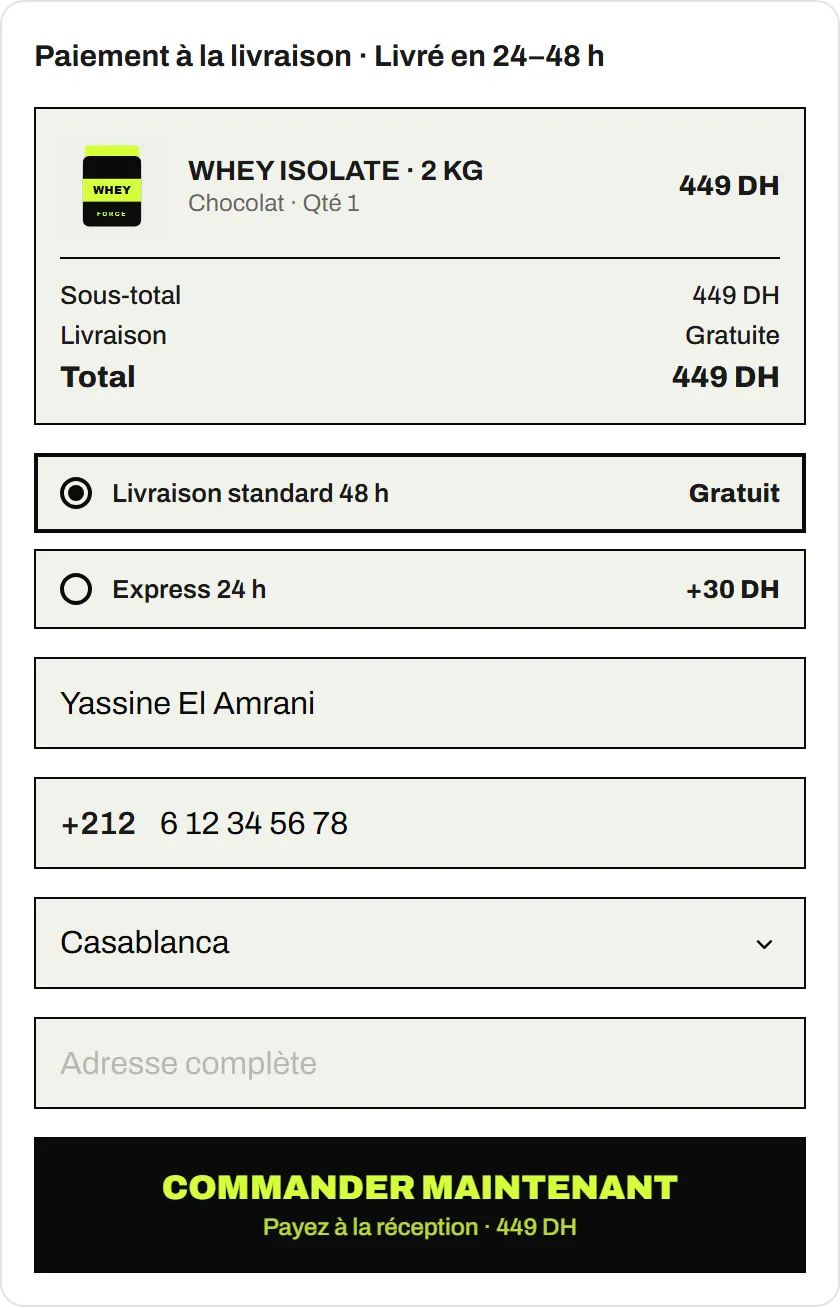
A COD form moves the order to the product page. The buyer taps the buy button, a short form opens with only the fields you need (name, phone, wilaya, address), and the order is created in your Shopify admin when they confirm.
A good COD form also handles the jobs around the order:
- Delivery prices per wilaya or region, added to the total before the buyer confirms.
- Quantity offers and upsells on the form.
- Fake order filters: block lists and limits per buyer.
- Order logging to Google Sheets, including buyers who started and left.
- Ad tracking so COD orders count as conversions.
Native COD or COD form: which should you use?
| Shopify’s native COD | A COD form | |
|---|---|---|
| Where the buyer orders | Shopify checkout | A form on the product page |
| What the buyer fills in | The checkout’s fields | The fields you choose |
| Setup | Settings > Payments | Install an app, switch on its app embed |
| Extra cost | No third-party transaction fees | Depends on the app |
Use native COD if most of your buyers add several products to the cart and check out, or if you already sell by card and COD is a secondary option.
Add a COD form if you sell one product at a time from ads, in a market where most buyers pay on delivery. The free EverCore COD Form has no monthly order limit; the setup is in How to add a COD form to Shopify.
What should you set up either way?
- Confirm orders by phone before you ship.
- Price delivery honestly, shown before the buyer commits.
- Track delivered orders, not just orders placed: that’s what pays you.